Taxi Routes Tool
Taxi Routes Overview
Taxi networks provide guidelines on how to get from one part of an airport to another. If the airport does not have a hand-drawn route, X‑Plane auto-generates a taxi network when it starts. These networks tend to have problems and are not very precise. Specifying a taxi network in WorldEditor will keep the AI-controlled aircraft moving in a reasonable manner around an airport, instead of going through buildings or off the pavement. They also contain important data such as taxiway names and hold short information.
To create taxiway routings for the AI aircraft, use the taxi routes tool and click to trace the path the aircraft should take. To do this efficiently, you may want to preset the properties of the taxi route tool using the tool defaults bar at the top of the window; then, you can draw all departure paths together, all paths for a specific runway together, and so on. If you do not set the properties that way, or need to change them later, you can select the taxiway(s) in the hierarchy pane, and then make your changes in the attributes pane below it. (Note that there are additional fields in the attributes pane, such as latitude and longitude, that should not be edited.)
Picking a runway in the Departure and Arrival fields indicates the segment is in a hot zone for that runway. Setting the ILS field indicates that segment is in an ILS precision area. The Size field determines the largest AI aircraft that is legally allowed to use the taxi route. This prevents aircraft with large wingspans from taxiing along routes that have limited clearance. Most taxiways should be specified large enough for the largest aircraft that could use a given airport–which should match the size of the largest ramp start specified at that airport. The slop field indicates how close your point must be to another taxiway section in order to snap to it. Larger numbers allow the paths to snap together from farther away. The other preset fields are self-explanatory.
When viewed in the ATC Taxi + Flow tab, taxi routes are color-coded for better visualization in the map pane. Runway segments are blue (or purple), basic route segments are yellow, hot zones are red, and ILS precision areas are orange.
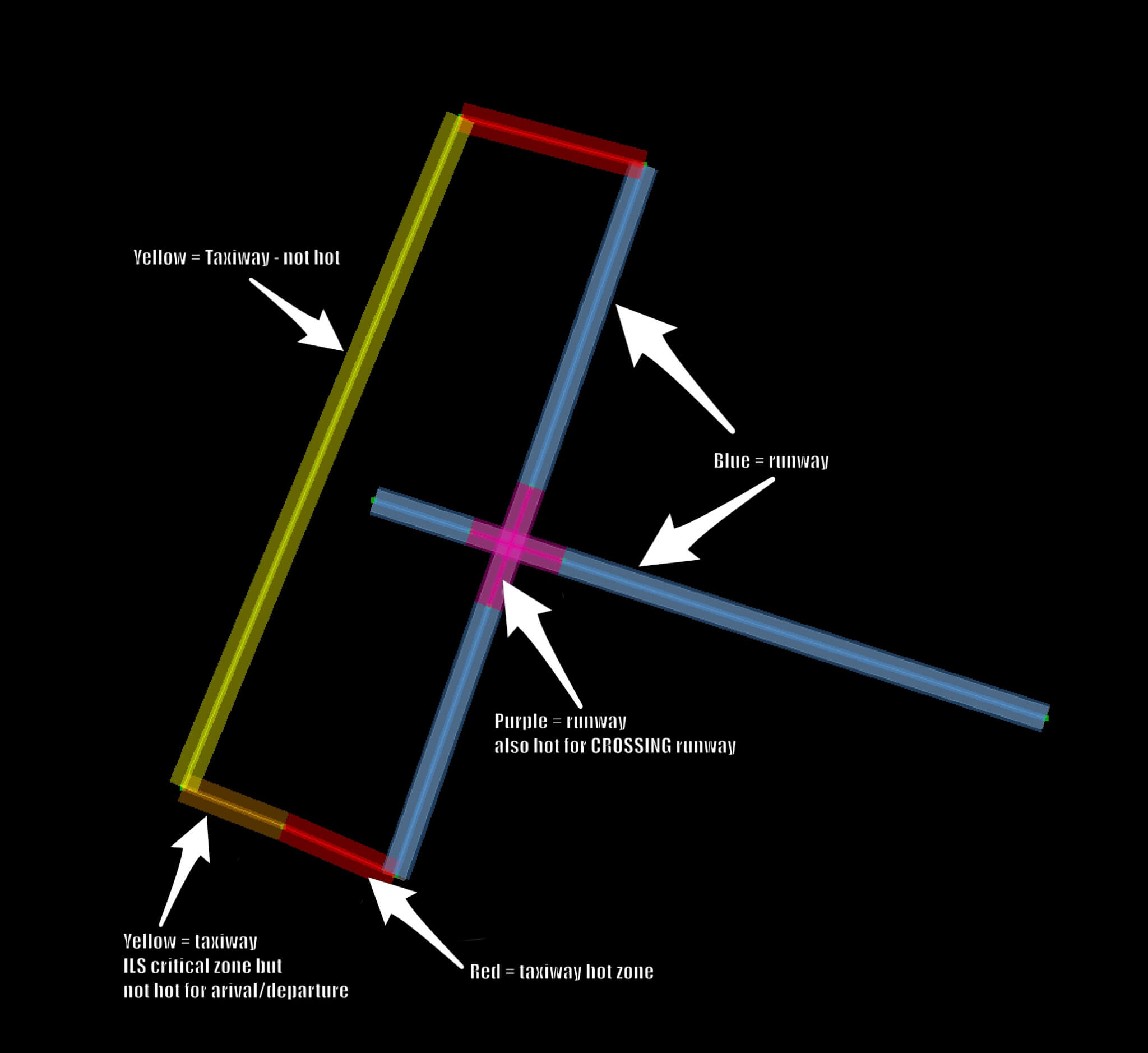
In addition, changing the Size field will change the width of the band. This is to help visualize how much space will be taken up by the largest aircraft of that category. Be sure to provide plenty of clearance–if any part of the band is overlapping, there will not be enough space there for the plane to pass safely in X-Plane.
WED includes a lot of validation to help catch any errors with your taxi networks because they are very complicated systems to design, but also very important. They’re the only way ATC understands how to direct AI aircraft around the airport. Keep the taxi network limited to the preferred and safe routes that aircraft would take at any airport. The ATC will not be able to distinguish rarely or never used taxi routes from the preferred one. Instead, it will always take the shortest and straightest path from a runway to the assigned parking position and vice versa.
See the article “ATC Taxi Route Authoring” for an in-depth guide to designing correct taxi routes. A five part video tutorial is also available on the X‑Plane Official YouTube channel.