Asset Selection Panel
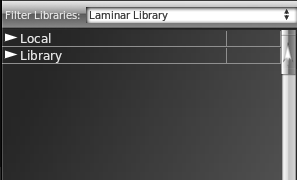
The asset selection panel is where you browse all the available art assets that you may put in to your scenery. While any asset type may be included in this panel, by far the majority of the assets you will find here are 3D Objects (OBJs) . The remainder are generally roads, forests, facades and lights type assets. The asset selection panel is divided into two main directory trees for browsing assets, Local and Library as shown below:
Local Assets
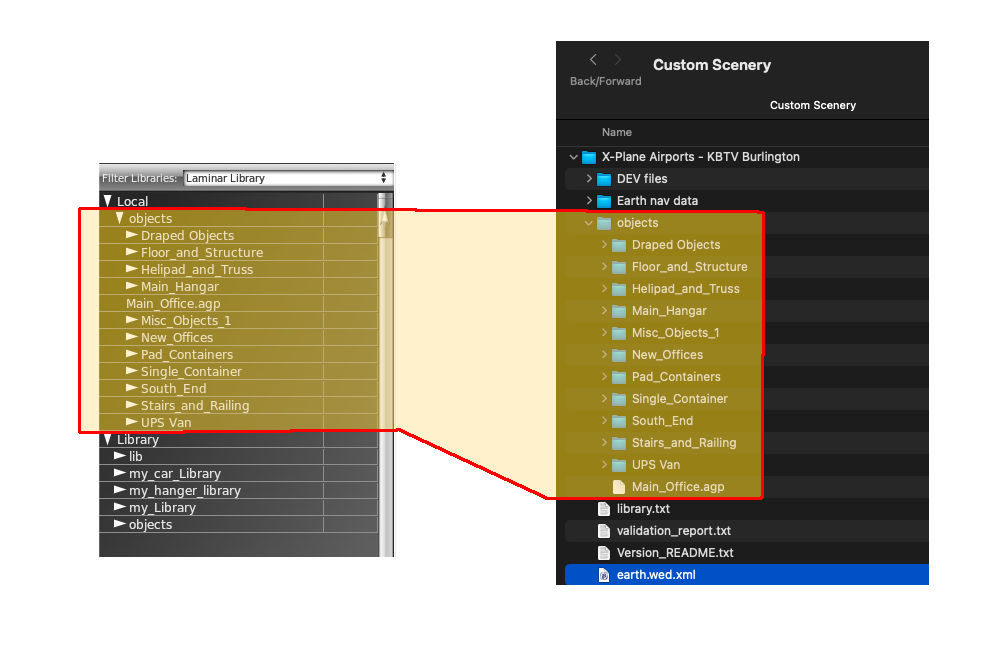
The Local directory tree is only relevant if a Custom Scenery Folder exits with valid art assets in it. If there are no valid assets or no custom scenery folder, the Local tree in WED will be empty. This is how it should be for Gateway Airports. If a Custom Scenery folder exists and its objects folder is populated, then its listing in the Local tree will mimic the hierarchy found in the folder. This correlation between WEDs directory tree and the physical directory tree is illustrated below. Be sure to organize your Custom Scenery objects folder in the way you want the items to be listed in this Asset Selection Panel. Local assets will only be available for placement in the Custom Scenery package being edited
Library Assets
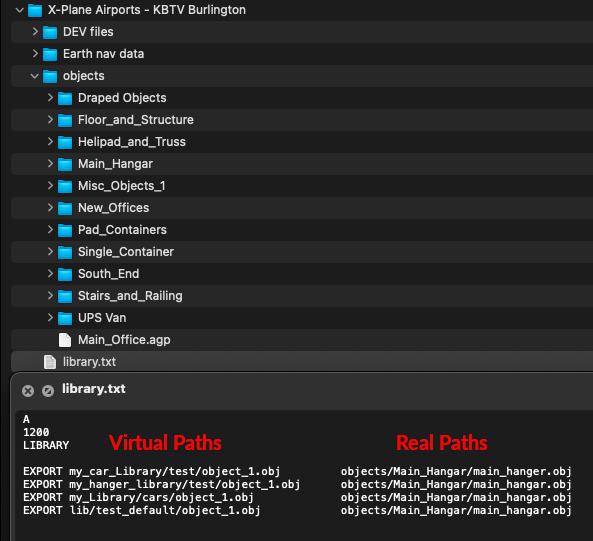
Unlike Local Assets, Library assets are available to be placed into any scenery, whether Gateway or Custom. Assets become Library assets whenever a valid Library.txt file is present and have entries in it that tell X-Plane where the assets are physically located relative to the library.txt file. Read more about the Library System here
The asset browser organizes the Library asset listing according to the directory style virtual path names specified in library.txt files; therefore, if you create your own library items, you should define your virtual path names in a hierarchical way that create the navigation structure you want in the Asset Browser panel.
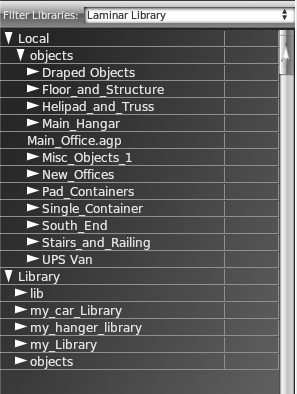
The image further below illustrates an example of providing a library.txt file to expose custom artwork to the Library system. Note the virtual Paths declared in the library.txt are reflected in the Asset Browser hierarchy in the Library section illustrated at right. Custom libraries are created in this manner. Note that this is an example only and declaring custom assets to be Library Assets, but not using them in other scenery packages makes no sense. In this example, the custom library assets would also be listed in the Local listing.
Because the virtual path names can be any valid text string, the Asset Browser does not "technically" know if a Library asset is Default or Custom. WED's Library filter distinguishes between the Default and Custom Libraries by virtue of their location. As mentioned previously, Laminar library assets live in the Resources folder and custom library assets live in the Custom Scenery Folder. When you use the Library Filter to select a specific Laminar library, then the Asset Selection Panel simply does not list any libraries in the Custom Scenery folder.
Asset Previews
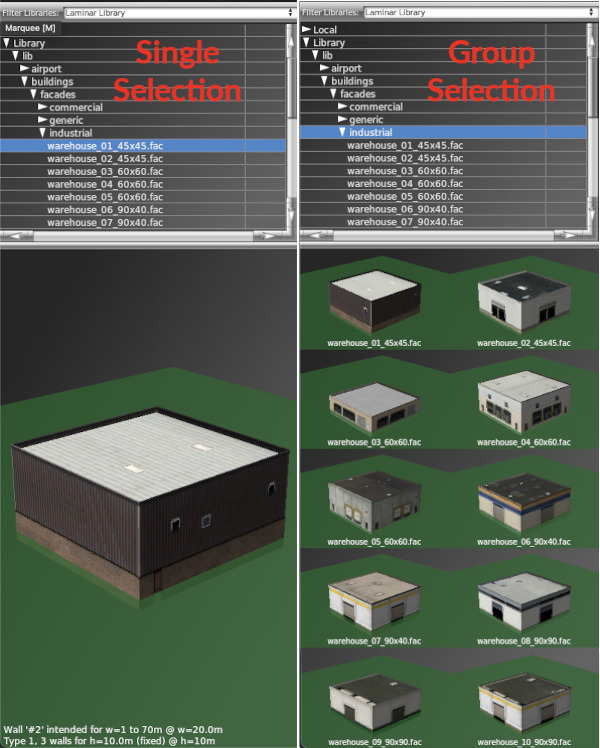
WED will show you a 3D preview of the Asset selected in the Asset selection panel. If you select a folder or virtual path that contains multiple assets within, then the preview window will show you all of the assets within that path/folder. The image below shows a typical preview of a single art asset when selected, and also the preview when a folder/path containing multiple assets is selected.