Fundamentals of X-Plane Scenery
WED XML File
Lets just get this out of the way first so there is no confusion. When you save a WED project, WED saves its native editing file in XML format. This XML file has NOTHING to do with X-Plane, it is only used by WED for editing purposes; therefore, if you have NO XML file, then you have no saved WED project.
This becomes relevant if you import airport scenery from Laminar's gateway (or other source) because the original XML project file authors created when authoring those airports are NOT included with the import. So if you import existing airport data with the intent to edit it, you will need to save your project immediately after the import, which will create your own XML project file.
Introduction
X-Plane Scenery as a whole, basically everything you can see except the airplane, is a sophisticated combination of many file types, data formats and graphic resources spread throughout X-Plane's folder, and which X-Plane reads and then renders in a specific order to create the scenery you see.
As a WED scenery author, you don't need to work with these files directly, WED will do it for you; however, it can be beneficial to have a general awareness of the scenery system architecture and that is what this section of the manual is for. In particular, this section will give you context about the major elements of the scenery system and how Custom Overlay Scenery Packages are structured and organized.
In addition, we'll discuss the various file types you can expect to see as a WED author. As your custom scenery packages grow in size and custom content, or you accumulate more and more custom scenery packages by others, then this knowledge may be beneficial when troubleshooting. Other sections of the manual go into more detail about some of these concepts.
For WED authoring purposes, We can loosely think of X-Plane as building its scenery from a large collection of two CATEGORIES of files.
| Art Specification Files | OBJ , LIN , STR , POL , FAC , FOR , NET, TER, AGS, etc., you get the idea |
| Geographic Location / Orientation Files | DSF & apt.dat |
WED creates and edits the Geographic files, that is it imports / outputs DSF and apt.dat files. This means that some scenery elements you place in WED, like runways and taxiways are written to a apt.dat file format, and others, such as 3D objects or facades, are written to a DSF file format. These two types exist due to X-Plane's evolution. In the very early days there was only apt.dat type elements, but as X-Plane evolved and introduced 3D objects, facades and draped polygons, the DSF format was created for those.
The distinction between the apt.dat type and DSF type is notable in WED as it can have a bearing on how the entities are organized in WED's hierarchy panel AND how they are rendered in WED's map view. The Scene Management section of the manual will discusses such effects further when you get there.
Base / Autogen Scenery
The Base Scenery is that generic/plausible scenery that X-Plane auto-generates from large bulk datasets, things like the terrain, basic airport runways, navaids, celestial data, road networks, ground textures, buildings and houses etc., i.e. anything contained in a large database and generated algorithmically. The Base/Autogen scenery is Baked into DSF files and is not dynamically generated by X-Plane. As such, you can remove sections of it with WED's Exclusion Tools, but X-Plane's scenery will not magically re-configure itself around your WED-created scenery.
We make special note that the Base Terrain Mesh in the DSF, i.e. the actual ground, oceans and mountains themselves are NOT editable in WED. Editing the terrain mesh is an advanced, specialized process and beyond the scope of this manual. The image at right shows a typical example of generic Autogen Base scenery.
The Laminar Library
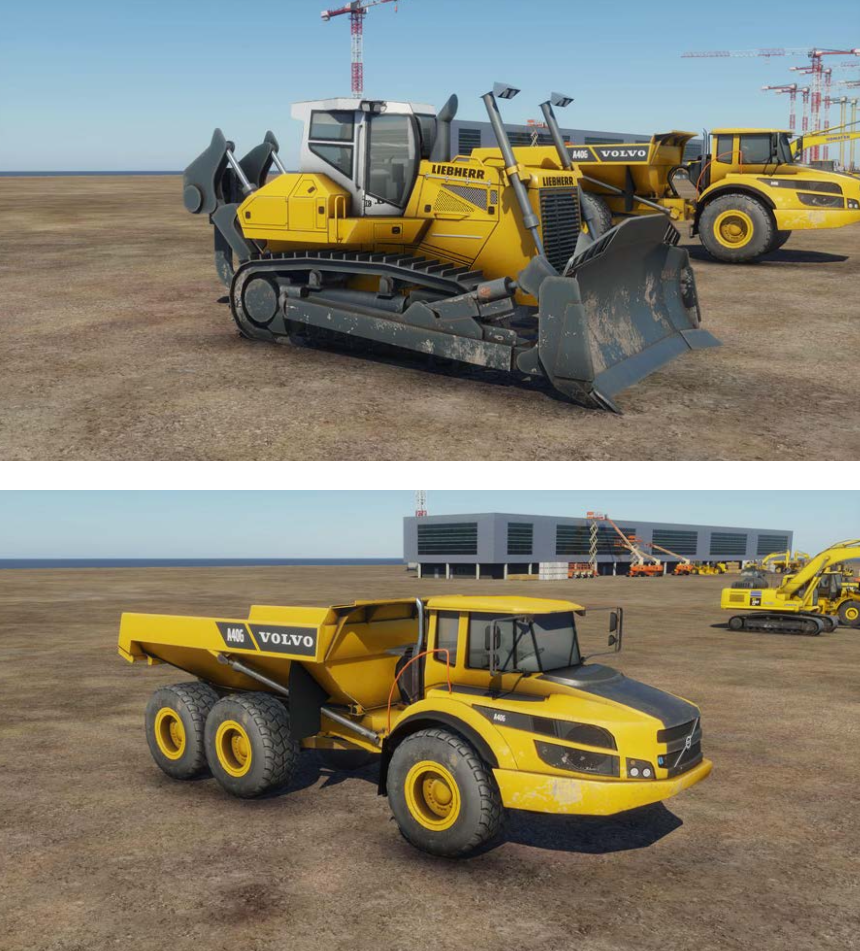
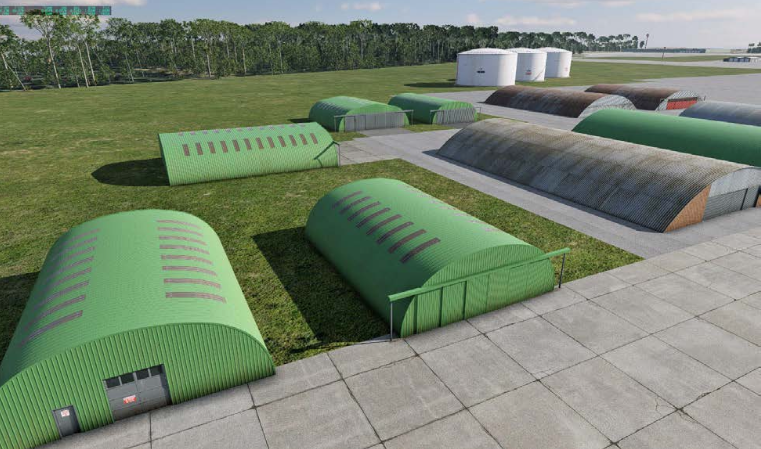
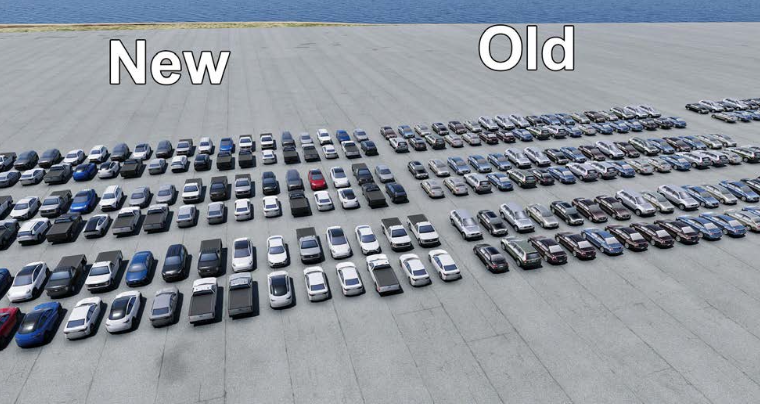
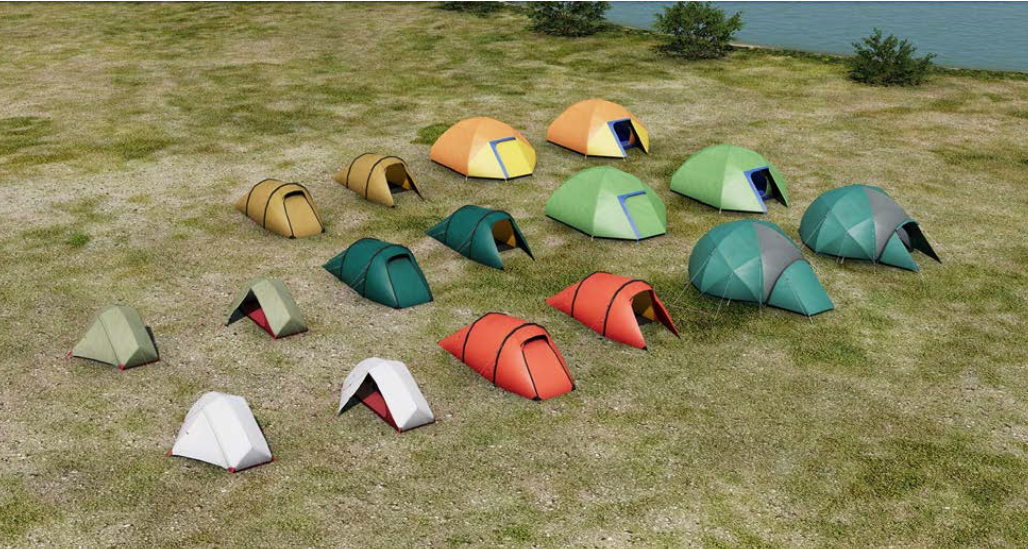
The Laminar library is simply Laminar's catalog of general art assets that ship with X-Plane and are used all throughout X-Plane scenery and contribute to X-Plane's look and feel. This library of art assets is available to all scenery authors also and you can browse the Laminar Library catalog of assets in WED. Laminar's library is quite large and growing constantly. In prior years, when the Laminar library was smaller, many 3rd party authors created additional libraries to augment Laminars and increase the volume and variety of art assets for users. Laminar has since hired dedicated artists to grow its library of art assets to be included by default, which now contains 1000s of entities. Below are but a fraction of the type and variety of elements being created regularly
Gateway Airports
In overly simple terms, Gateway Airports are airports that have been created using only Laminar Library art assets. Because these art assets are included with X-Plane, users do not have to create their own art, nor go find and download additional art to create their airport scenery. Authors can simply use WED and the included Laminar Library to build complete, plausible airports that very closely resemble their real-world counterpart. 99%+ of the airports in X-Plane are of this type. There is more to the story regarding "Gateway Airports", which is covered further in its own section of this manual.
Overlay Scenery
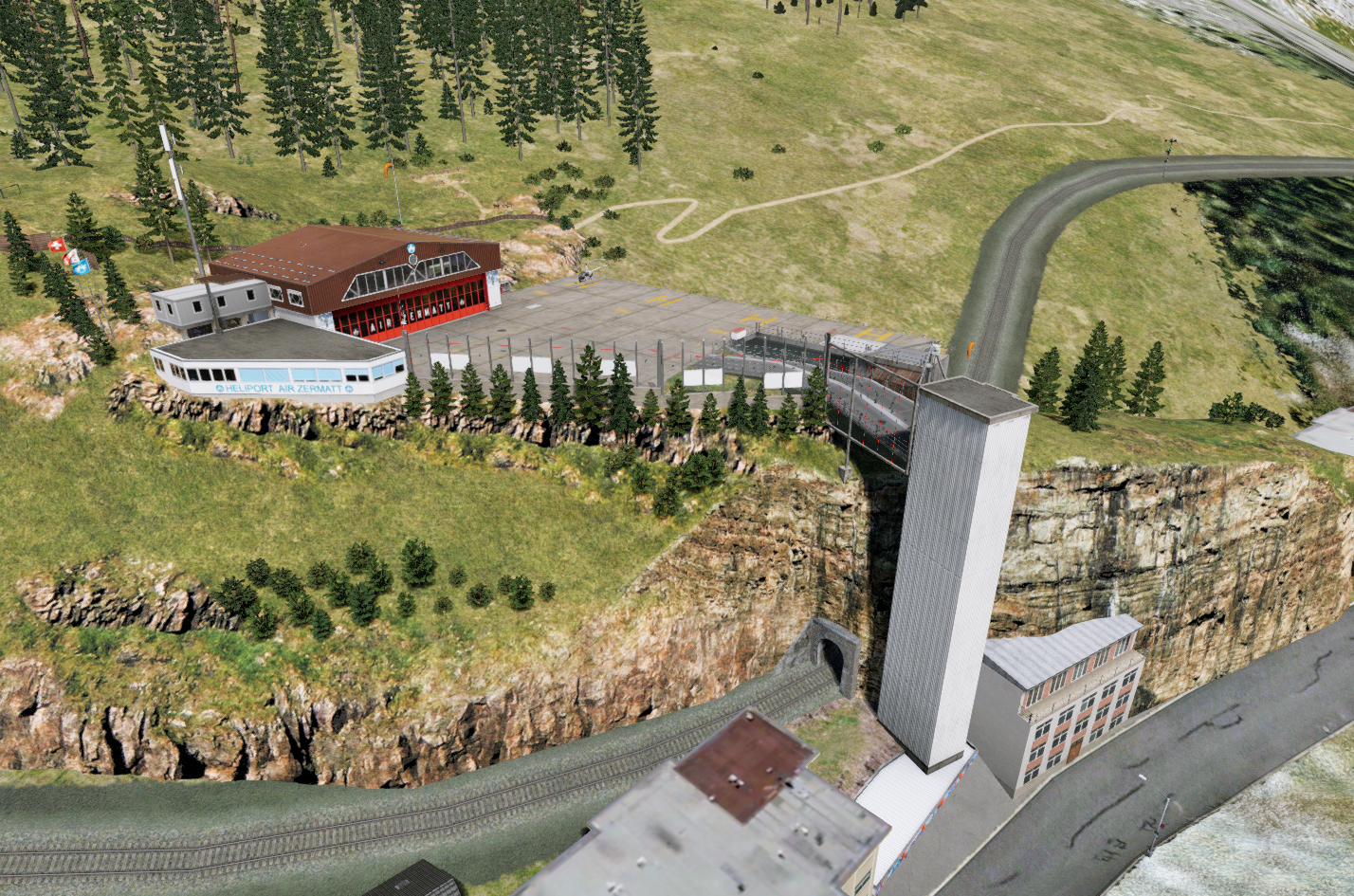
Click to Enlarge
On "top" of the base scenery is optional Overlay Scenery, sometimes called Custom Scenery. Its called Overlay Scenery because it is overlaid on the Base Scenery and it is called Custom because someone has to create it manually, which is what WED is for. Overlay Scenery is manifested via Scenery Packages, which are folders in X-Plane's Custom Scenery folder.
The image at right shows Custom Overlay Scenery for LSEZ Heliport in Zermatt Switzerland. This scenery is developed and maintained by Laminar and included with X-Plane. Custom Scenery is characterized by custom one-off art-assets that are NOT in the Laminar library. In other words, the scenery contains art assets that you, the author, have provided, i.e. unique landmarks, a specific FBO building or water tower.
With overlay scenery and a bit of ambition, a user with no programming experience can create a custom, realistic version of their home town and airport and easily incorporate it into X-Plane. Overlay scenery is implemented through Scenery Packages discussed below.
DSF Scenery Tiles
X-Plane does not render the entire planet at once, which would be a waste of computing power. There is no reason to render the scenery beyond what you can see from your aircraft. For this reason, X-Plane divides the planet into thousands of 1º x 1º regions (called tiles), but only renders 12 tiles at a time. The small/tight grid shown in the illustration below shows this concept. In order for X-Plane to render any scenery within a tile, then it needs to know what scenery to render there, and this scenery information is contained in what are called DSF Files. If no DSF file exists for a region, then X-Plane will simply render open water in that region.
DSF stands for Distributed Scenery Format. Each region containing scenery other than water is represented by a single *.DSF file, which is binary and not human readable. Further, these individual DSF tiles are required to be in strictly named folders. Both the folder and file name formats are unique and indicate their area of coverage over the earth. This file/folder organizational and naming concept is illustrated below.
The area highlighted in light blue in the middle circle represents the folder that contains the individual DSF Tiles. DSF folders always cover a 10º latitude x 10º longitudinal section of the earth and its boundaries always located on multiples of 10º latitude/longitude, which means it can contain up to 100 DSF tiles max. The name of DSF folders are derived from the lat/lon coordinate of the SOUTH-West corner of the area they cover. The example below shows a folder named +50-010, which are the lat/lon coordinates of its SW corner (yellow dot). A 2-digit lat coordinate comes first, followed by a 3 digit longitudinal coorindate. Both coordinates are preceded by a +/- sign depending on the hemispheres in which they reside. The northern and eastern hemispheres are positive values and southern and western hemispheres are negative values. Note that a DSF folder covering an area "to the northeast" of the prime meridian/equator intersection would be named +00+000. A plus sign is used as the prefix if a coordinate is zero. (Prime Meridian or equator)
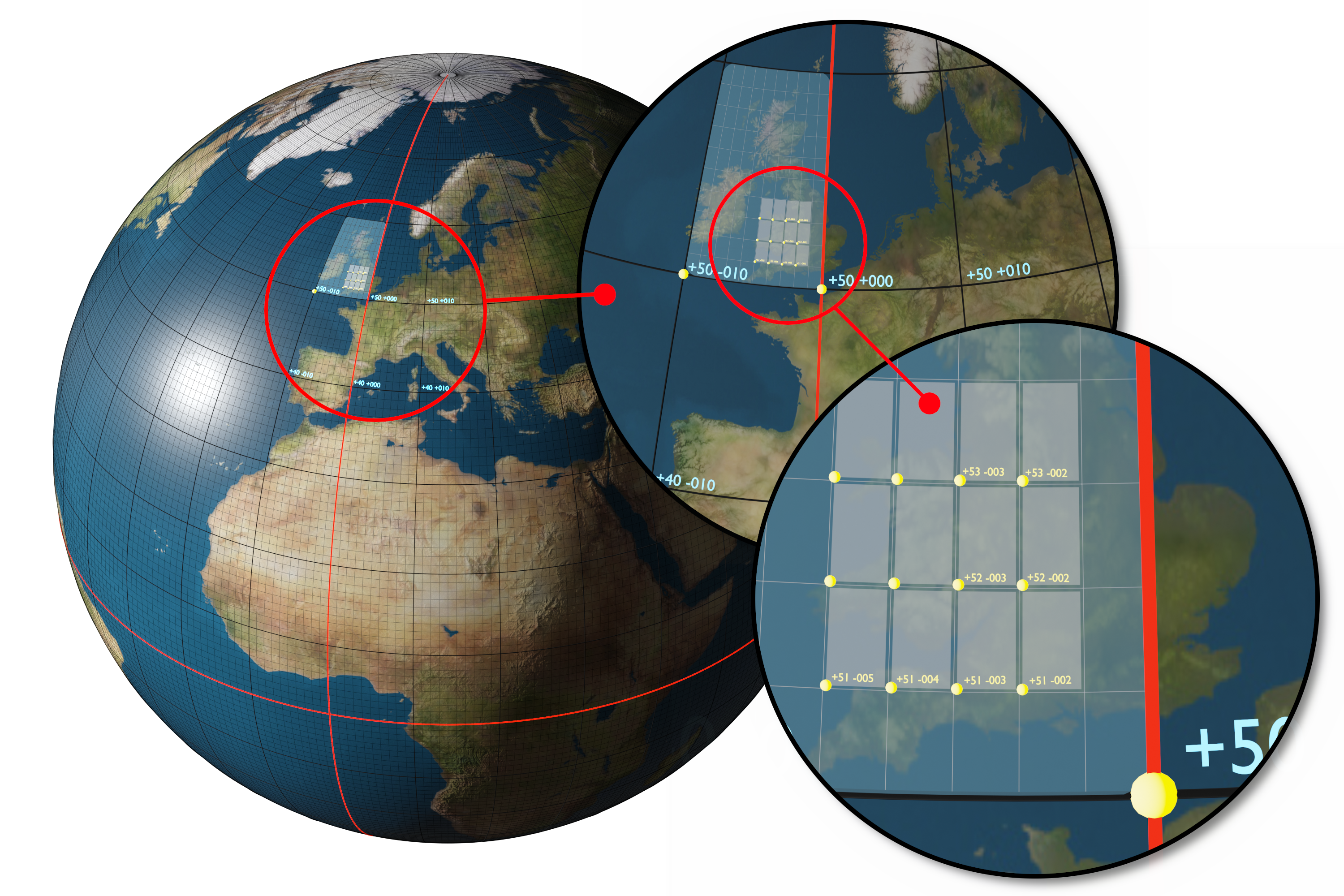
Click to Enlarge
Individual DSF tiles/files inside DSF folders follow the exact same naming rules as DSF folders, but instead of representing a 10º x 10º area, DSF tiles only cover 1º x 1º, so the SOUTH-west corner of the DSF tile dictates its filename. The example file hierarchy shown below shows this naming paradigm and how individual DSF tiles live in their containing DSF folder. One important note, all DSF folders must reside in a folder called Earth nav data. This file structure will be automatically generated for you when exporting your scenery work from WED, but being familiar with the file organization paradigm is a good thing if you have to troubleshoot file paths.
X-Plane Install
Custom Scenery
My Awesome UK Scenery
Earth nav data
apt.dat
+50–010
+51–002.dsf
+51–003.dsf
+51–004.dsf
As mentioned previously, X-Plane only renders 12 DSF tiles at a time, 4 tiles East/West and 3 tiles North/South, and as aircraft move across the earth, it unloads and loads DSF tiles in the background as required. While X-Plane ships with Base scenery tiles from 60ºS to 70ºN, it is capable of loading tiles outside of this band; however, there is a caveat. Since DSF tiles are geographically aligned along latitude/longitude lines, they become less square and "pinched" as they get further from the equator and the scenery system does not do a good job of mapping scenery efficiently outside of 80º N/S, so we do not recommend creating polar scenery when alignment between scenery entities is critical.
DSF files contain and specify a large amount of mostly non airport related scenery related information that X-Plane uses to render the scenery. Some examples of the type of information contained in DSF files include:
- Base Terrain Mesh geometry.
- Beach placements
- Road grids
- 3D Objects / placement / orientation
- Facades
- Forest Regions
- Draped polygons
- Draped lines
- Strings of objects
We say mostly non-airport stuff because as X-Plane versions have evolved, Laminar have moved some 3D airport related elements like Beacons to be 3D objects specified in the DSF file, whereas in older versions of X-Plane, beacons would be exclusively specified in the apt.dat file, which is described next.
apt.dat file
The apt.dat file format contains airport specific information and is used by X-Plane to render airport specific elements only. When you visualize an airport, you typically think of taxiways, aprons, runways, control towers, hangars, aircraft, service trucks, terminal buildings etc. Well not all of these items are airport specific. The trucks, hangars, terminals and even the control tower can exist at any airport, but the apron shapes, taxiway layouts and runway specs can not, they are unique to the airport itself, and that is what the apt.dat file contains. The airport "as you visualize it" with physical objects located all over it is rendered by X-Plane using both the DSF file above for non-airport specific parts and the apt.dat for airport specific parts.
Whether or not X-Plane renders its default version of the scenery or your customized version depends on whether or not your scenery package exists in the right spot and has valid files and data inside. This topic is discussed in Custom Scenery Packages further below. The image below shows various default/custom combinations of the DSF and apt.dat elements together to make up the overall airport scenery. You can click on the images to make them larger.
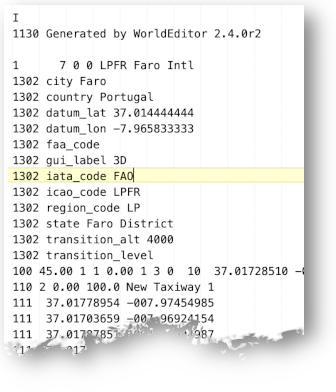
Unlike the binary DSF file, apt.dat files are human readable text as shown above right. An apt.dat file can contain data for more than one airport. In fact, the default apt.dat file for X-Plane's default airports contains ALL of X-Plane's airports in one file, which exceeds 370 MBs in size.
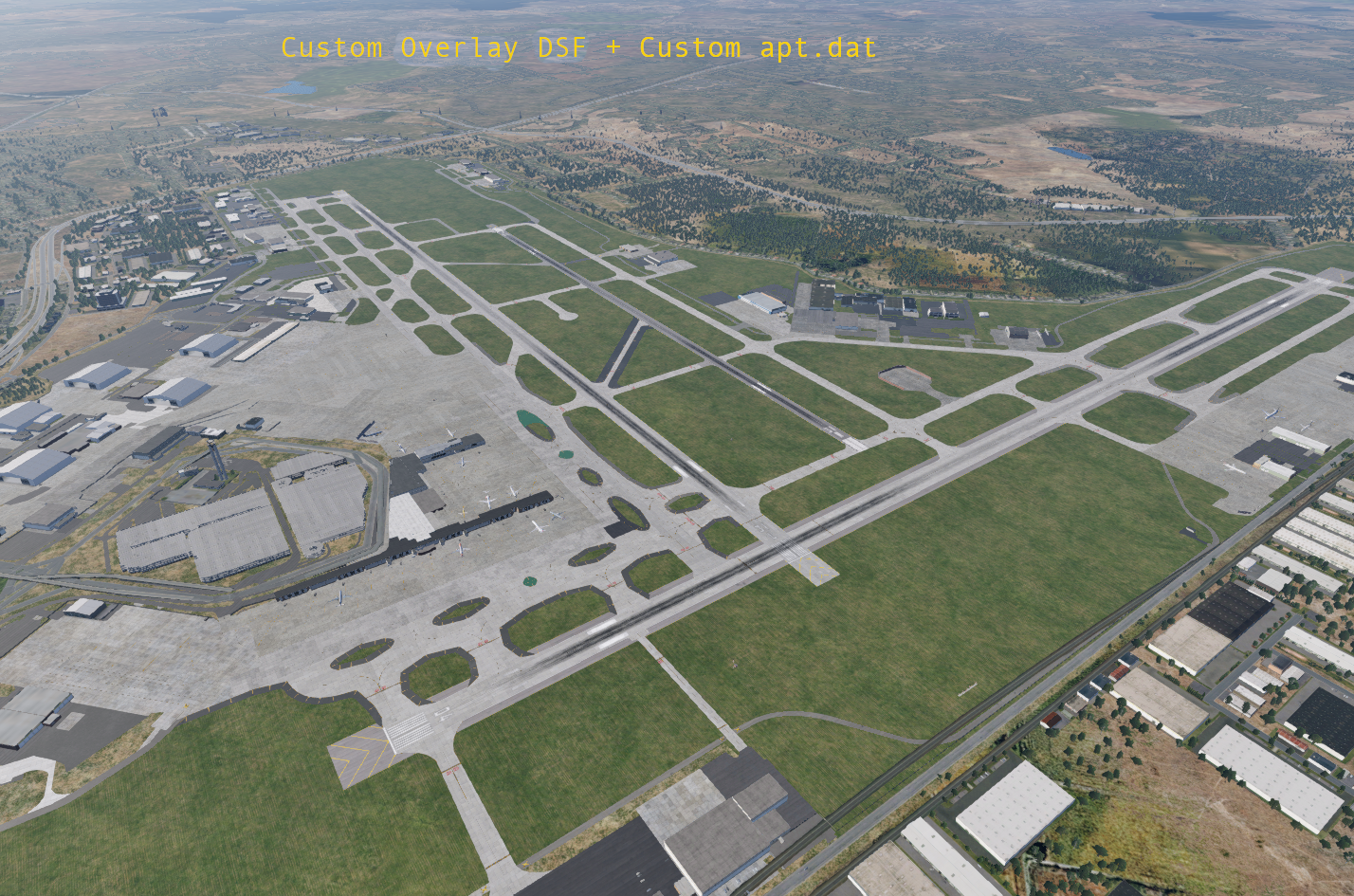
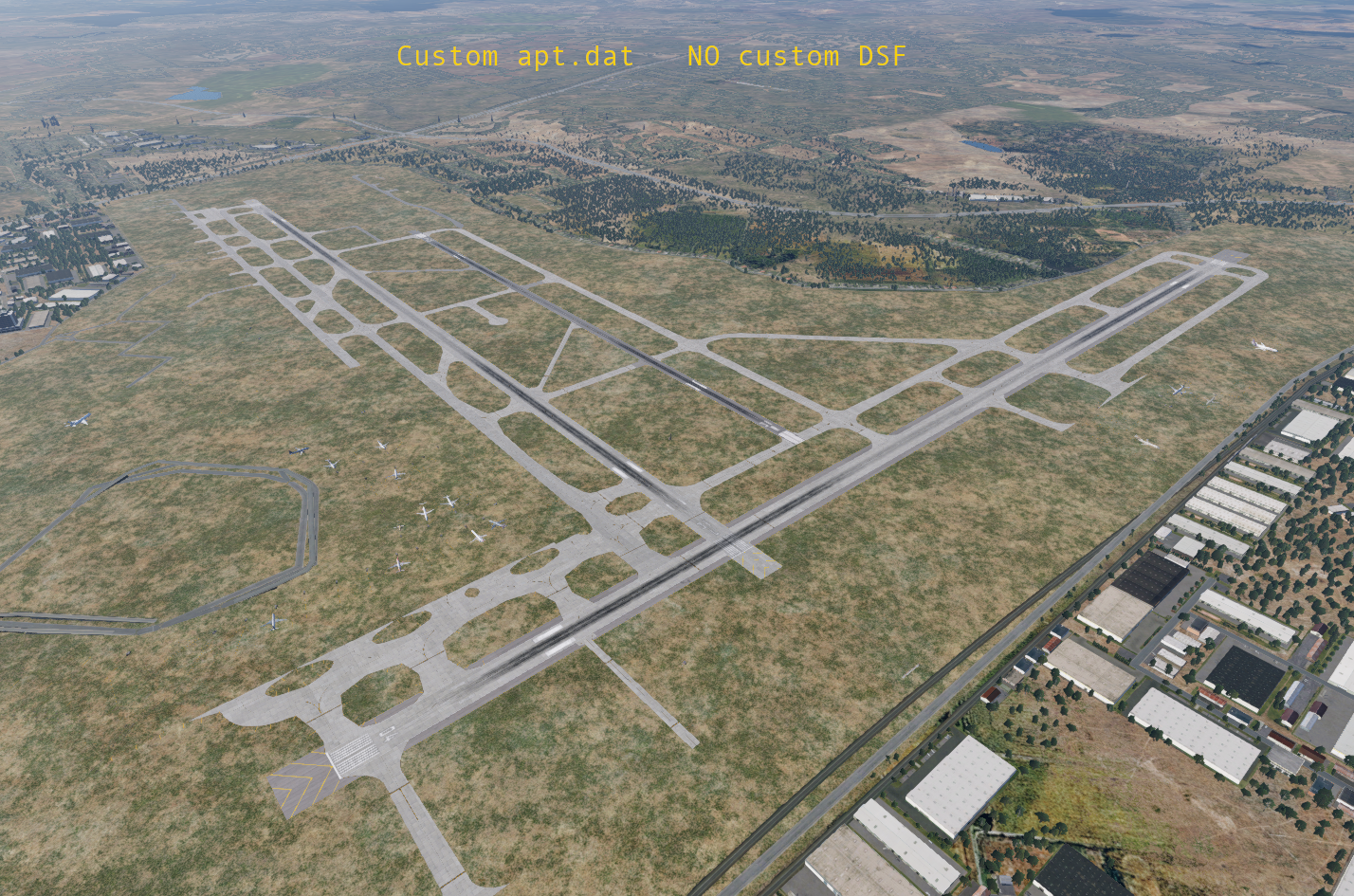
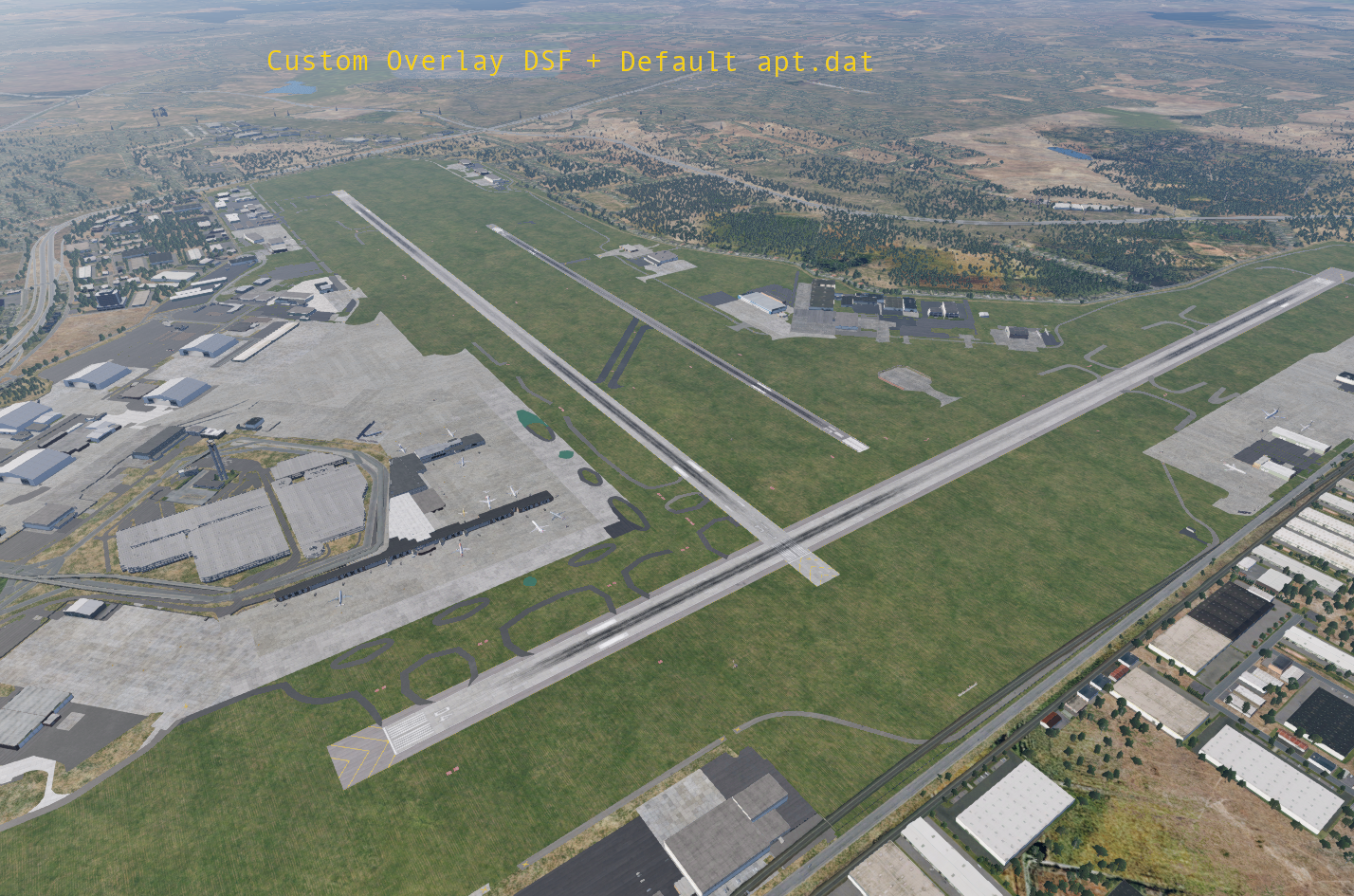
With regards to creating custom scenery with WED, you will have one apt.dat file per scenery package when you export your scenery. The example directory structure shown above shows the apt.dat file alongside the DSF folders. Note that both DSF folders and the apt.dat reside in the required Earth nav data folder. If your scenery packages have multiple airports in the region, then the single apt.dat will define both airports, etc. When you export out your Custom Scenery package, you will typically see both DSF files and an apt.dat file in your scenery package folder.
There is one exception where an apt.dat file will not exist in custom scenery packages, and that is when creating off-site scenery only like landmarks, with no airport elements at all.
library.txt
The library.txt file is not a file type you normally have to work with directly, but is one you should be aware of, so we mention it here briefly. Library.txt files are a referencing scheme, and the function of library.txt files are to map a virtual file path to the real file path of an art asset. This have three benefits for X-Plane scenery:
- It allows 3rd parties to create their own "Art Asset Library", which can be used by any scenery package.
- It allows 3rd parties to replace default X-Plane art assets with their own custom art assets.
- It allows Laminar to update its art assets over time without requiring authors to update their work.
If you do not wish to create your own scenery asset library, nor replace default X-Plane art assets, then you will not have to deal with the library.txt; however, if you are doing either of those things, or using a 3rd party scenery asset library from someone other than Laminar, then you may find it helpful to be familiar with how the library.txt file actually works. You can read more about X-Plane's Library System here
Scenery Packages
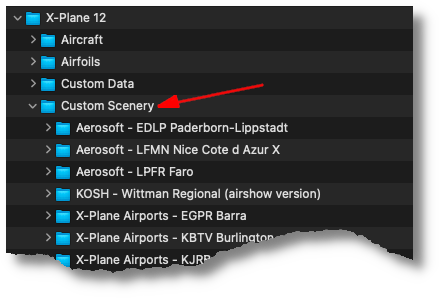
A Scenery Package is "overlay scenery", and is a collection of specific files/types that live in their own folder. These file types are of the types described above, i.e. DSF files, apt.dat files and potentially other custom art assets you create, depending on what you want put into your scenery.
Scenery Packs (folders) are located in X-Plane's Custom Scenery folder as shown at right. A Scenery Package is always Custom and as mentioned, is always Overlay Scenery, so you may see the following terms below mixed interchangeably, but all refer to the same thing, a Folder inside X-Plane's Custom Scenery folder.
- Scenery Packs
- Custom Scenery
- Scenery Package
- Overlay Scenery
- Custom Overlay Scenery
- Custom Scenery Package
Note that we DO reserve the name Custom Scenery Folder to mean X-Plane's default folder that contains all the Scenery Packages in it. Best practice is to use the term Scenery Pack to refer to and individual folder inside X-Plane's Custom Scenery Folder, and Overlay Scenery to generically refer to all the Scenery Package folders collectively.
When you create a New Scenery Package using WED, then WED creates a folder inside X-Plane's Custom Scenery folder for you. As you build your scenery in WED and ultimately export it to X-Plane, then your Scenery Pack will be populated with the requisite files by WED. Similarly, if you want to install someone else's Custom Scenery Pack, then you simply copy it into your Custom Scenery Folder.
The Custom Scenery Folder can contain lots of Scenery Packages, some of which may overlap if you have 3rd party Scenery Packages that model the same areas of coverage. X-Plane have a way to manage Scenery Pack priority with the scenery_packs.ini file. You can read more about this file and the Custom Scenery Packages here
Reloading Scenery
As you develop scenery and add entities, you will want to preview your work in X-Plane. Its a very common workflow to keep WED and X-Plane open at the same time, make changes in WED, export those changes and then reload those changes. X-Plane have the following menu command in the Developer Menu you can use to reload your scenery
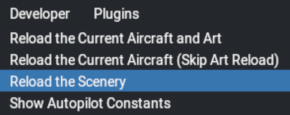
There is a caveat to the Reload the Scenery command. It will only reload the DSF file, and will NOT reliably reload the apt.dat file. You should restart X-Plane if you want to see your airport specific scenery changes such as Taxiways, Taxi-signs, Runways, Traffic flows, ATC routes, Ramp locations, etc. For 3D objects however, which are specified in the DSF file, then you can use X-Plane's reload scenery command to see those changes.
A generic rule of thumb is if you place elements using the Asset Selection Panel, then those will be DSF changes and you can use X-Plane's reload scenery command. If you use the toolbar tools, then those are generally apt.dat changes and you'll need to reload X-Plane to see those. This isn't ubiquitous, there are a few tools in the toolbar (Object / Facades) that are DSF entities. The most sure-fire way to visualize your changes is to restart X-Plane.