Custom Overlay Scenery Packages
Introduction
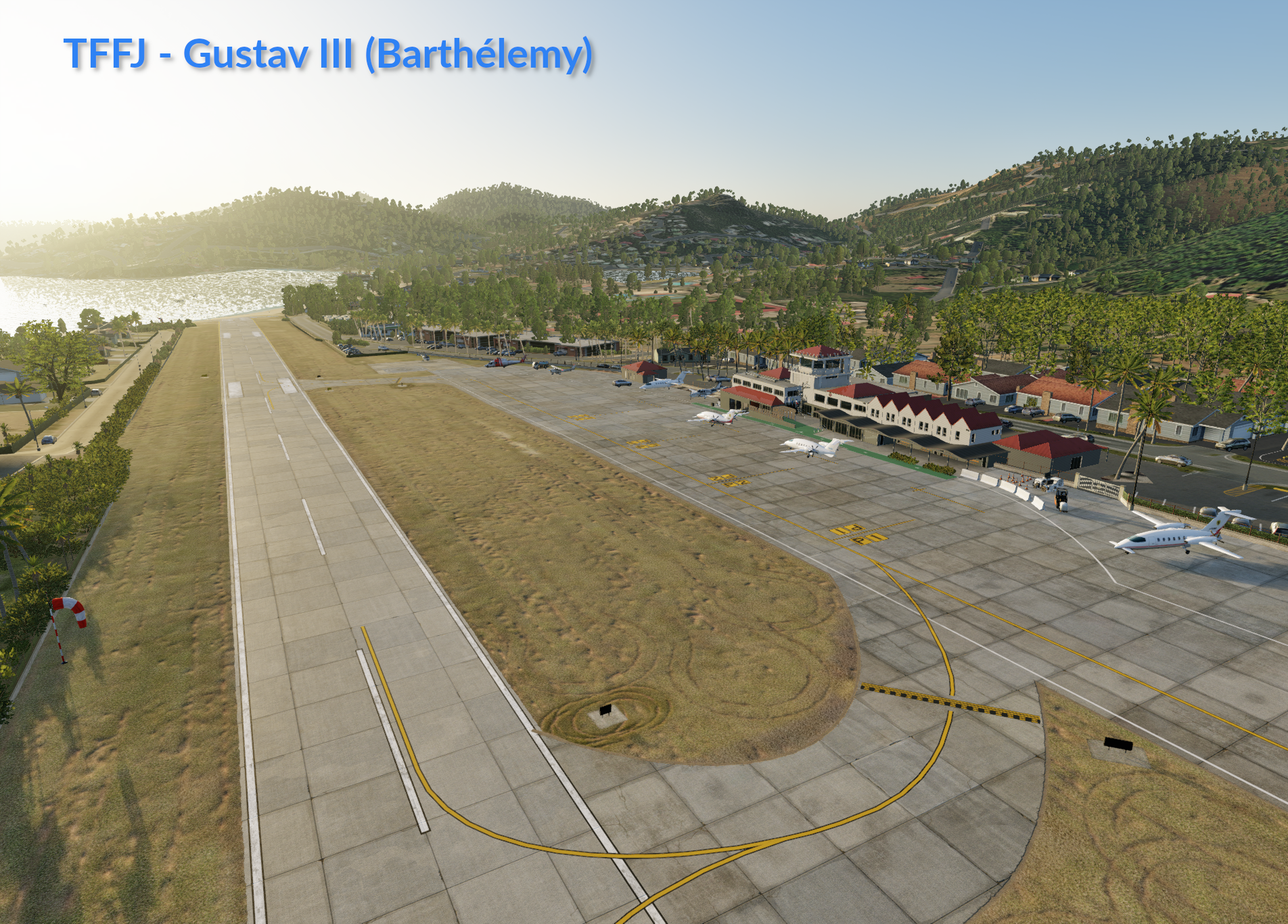
Modeling the entire planet accurately and realistically through automated algorithms is not an easy thing. Its a big place and earth has lots of stuff all over it. Automated scenery generation techniques on this scale can only capture so much detail, the rest must be done with Custom work and this is where X-Plane's Custom Scenery Packages come into play. Laminar have two mechanisms to enable users to customize X-Plane scenery:
- The Custom Overlay Scenery System
- The Gateway Scenery System.
Only Custom Overlay Scenery is discussed here. Gateway Scenery is a derivative of custom scenery and discussed in the next section.
The Overlay System
All of the file types X-Plane uses to render the world scenery are the same regardless of whether the scenery is Base or Custom. The difference lies is WHERE these files live, and for some file types, what their names are. When X-Plane loads scenery, it looks for specific file types and file names. It first looks in X-Plane's Custom Scenery folder and if it finds valid scenery related files there, it loads those files instead of the equivalent Base scenery files. A single folder in X-Plane's Custom Scenery folder is called a Custom Scenery Package.
Recall from the Fundamentals chapter, we said that there are a LOT of file types used to create scenery. You do not have to create all the file types when you create custom scenery, X-Plane will only load and Overlay those custom parts you create, and the remainder will fall back and utilize X-Plane's Base types.
An example will help illustrate the concept. To render airport taxilines, X-Plane uses three resources. An apt.dat file specifies the taxiline PATHS around the airport, and a separate text based *.LIN file tells X-Plane which image file to use for the taxilines appearance and how wide it should be and the final resource is the bitmap image itself of the taxiline. If your custom scenery contained a replacement *.LIN file, library.txt and taxiline texture, but no apt.dat file, then you could change the taxiway line appearance, but X-Plane would fall back to its base apt.dat file for the layout. If; however, your custom scenery folder contained a replacement apt.dat, but no replacement *.LIN and library.txt file, then you would customize the taxiline layout, but the taxiline appearance would fall back to X-Plane's base style. Of course if you replaced all elements (apt.dat / *.LIN, image), you would then have full control of both your taxiline path layout and its appearance.
Changing the appearance of Base X-Plane elements in the Laminar Library, while doable as described in the example above, creates some caveats. Lets say, for example, you develop a new taxiline appearance via the Overlay System. Anyone wanting to use your taxilines style would have to download and install your custom scenery package. For common scenery elements that appear all over the world repeatedly, it behooves Laminar Research to develop the best appearing assets it can and include those in the Laminar Library, leaving only the most customized elements for the scenery author to develop. Mixing Laminar library scenery elements with your own custom scenery elements results in a Hybrid Scenery Package.
Hybrid Scenery
Hybrid scenery is simply a scenery package that uses custom one-off art assets developed by a 3rd party in conjunction with Laminar Library elements that ship with the sim. In this sense, every Custom Airport is essentially a Hybrid as it makes no sense for an author to recreate any of the 1000s of default scenery elements included with X-Plane. Hybrid airports will contain both Laminar Library Art Assets and Local Assets.
Local assets
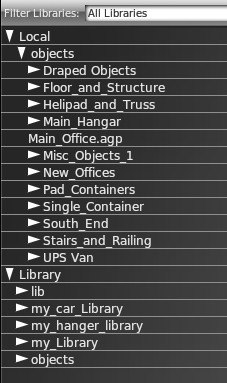
Custom art assets that the author provides and places in a Custom Scenery folder are called Local Assets because they are "Local to that scenery package only", unavailable to any other and these art assets must reside in a Scenery Package folder. Local assets can be browsed in WED via the Asset Selection Panel shown at right, where they will be visible under the topmost Local category. The WED navigation menu for browsing Local art assets mimics the physical folder structure inside your Custom Scenery folder, whereas the Library navigation menu is built from entries in library.txt files.
If you recall, a library.txt file can be used to expose your art assets to X-Plane's library system. As such, if you create a library.txt file with virtual paths exposing some of your Local art assets, then those assets would appear in both the Local and Library sections of the Asset Browser Panel when editing your scenery package. It it not recommended to expose one-off custom art assets to X-Plane's library system, but rather keep those as Local only. The exception to this is if you are creating a dedicated art asset library intended to be shared with and used by other scenery packages.
scenery_packs.ini
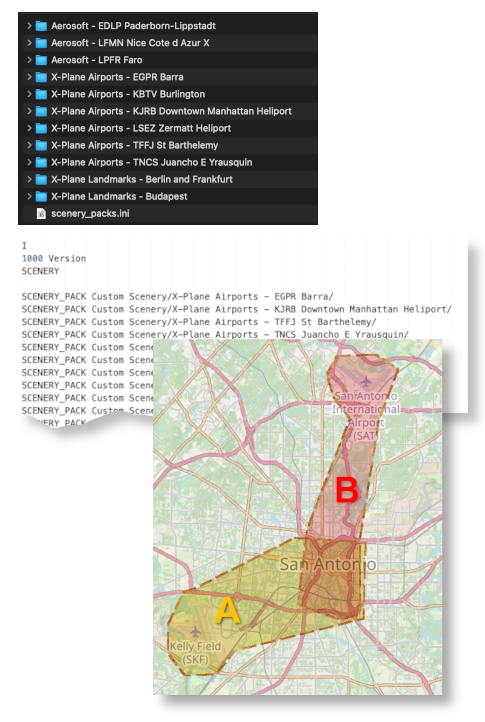
Inside the Custom Scenery folder is a text file called scenery_packs.ini. The purpose of this file is to tell X-Plane which Scenery Packs to load and in what order. It allows Installer software and 3rd party utilities to enable/disable, update and re-order Custom Scenery packages by simply editing this file. X-Plane prioritizes scenery pack drawing in the order they appear in the scenery_packs.ini file as shown at right, with the topmost entry being the highest priority. Preceding a scenery pack name with SCENERY_PACK_DISABLED, rather than SCENERY_PACK will disable the scenery pack altogether.
The most common reason for prioritizing scenery packs, is that it is entirely possible for differing 3rd party authors to develop Custom Sceneries for the same area and X-Plane needs to know which elements it should draw should two scenery packages have overlapping scenery elements.
This concept is illustrated on the map at right. You may have one scenery package A for some airport that includes some surrounding area custom work, and another scenery package B for a nearby airport, also with custom work that duplicates and overlaps that from scenery package A. For example, both packages may model the same city center. If exclusion zones around the city center are present in both sceneries and overlap, then the scenery listed higher in the scenery_packs.ini file will have the higher priority and be the scenery whose exclusion zones will be honored and that city center drawn.
Exclusion zones are perimeter boundaries you draw in WED to tell X-Plane, "I have done custom work inside this perimeter, so do NOT draw any custom work of the same type inside this perimeter". Of course for X-Plane to listen to you rather than some other scenery claiming the same, then your scenery has to have a higher priority in the scenery_packs.ini file.
If the scenery_packs.ini file is not present, then X-Plane will create the file on loading and build the priority list based on the alphabetical order of the Custom Scenery folder names. If a scenery pack is manually removed but listed in the scenery_packs.ini file, its entry will be removed from the ini file. If a scenery pack is added to the Custom Scenery folder manually, but not entered in the scenery_packs.ini file, then X-plane will add it to the top of the priority list automatically.