Hierarchy Panel
- You cannot expand/collapse asset groups when a filter is active (text in the filter box). You need to clear the filter search bar and then you can expand/collapse the asset groups.
The Hierarchy Panel lists every single entity that has been placed in the scenery. Entities may be grouped together as desired and the group given whatever name you like. In this panel the Groups are analgous to folders in a directory tree and have a turn down symbol where you can expand the group to see the entities contained within that group. Entities may only be in one group. This Panel can be used to select items, select groups of items, lock entities/groups so they cannot be selected, and control the visibility of entities/groups.
The top level group will always be called "world" and cannot be changed. Neither will there be more than just the one. This is basically a group container for the entire WED file. Below the World group; however, there are some paradigms and best practices you should be aware of.
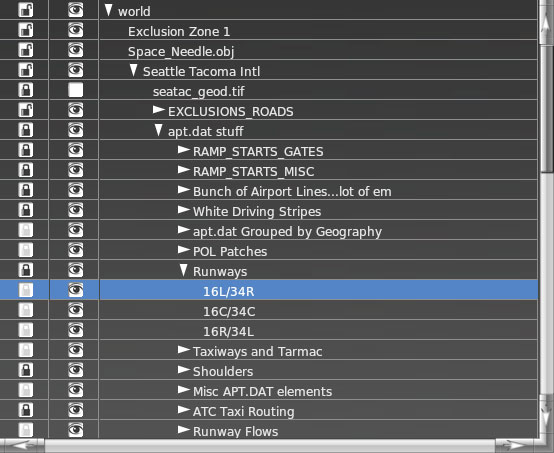
Using this pane, you can select an element or group by clicking on it. This will highlight that element in both the hierarchy and map panes. By double-clicking on an entity in the hierarchy, you can rename it.
By clicking and dragging an entity in this pane, you can change the order in which objects are drawn: objects and groups higher in the hierarchy will be drawn on top of those lower in the hierarchy whenever they overlap. For instance, in Figure 5, the “Runways” group is higher than the “Taxiways and Tarmac” group, so all elements within “Runways” will be drawn over elements contained in “Taxiways and Tarmac” if they happen to overlap.
To place one or more entities in a group, select them and press Ctrl+G on the keyboard (Command+G on Macs), or select Group from the Edit menu. To ungroup elements (that is, remove a group, leaving all entities the group previously contained at the same “level” as the group was), select a group label and press Ctrl+Shift+G (Command+Shift+G on Macs), or select Ungroup from the Edit menu.
By clicking the lock icon, you can lock an element or group to prevent further visual editing. Note that is applies only to editing within the map pane; changing the element’s properties in the editing tabs (beneath the hierarchy pane, described below is still possible. Note also that this property applies recursively: if a group in which an element resides is locked, that element will also be locked.
Next to the lock icon is an icon that looks like an eye. This toggles the visibility of an element or group. Invisible elements will not be exported for use in X-Plane, and will of course not be visible in the map pane.
To delete entities, select them in the hierarchy and press the Backspace or Delete key on the keyboard, or select Clear from the Edit menu.