Library System
General Overview
As we mentioned in the Brief Overview on the library.txt file , you may not have to interact with X-Plane's library.txt file(s) directly unless you want to create your own art asset library, or replace default X-Plane art assets.
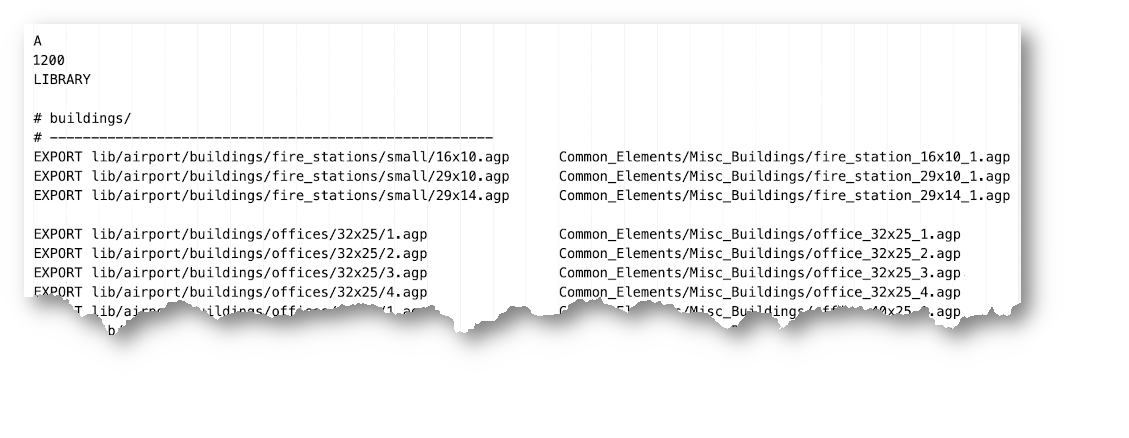
The Library system is a mechanism whereby you can specify an art asset to be in your scenery (3D object, line style, forest style) by specifying a virtual path, and the library.txt file(s) then tell X-Plane where the real art asset is in the file system so it knows what art to draw. A short example will help make this concept and the reason for its existence more clear. For reference, a typical library.txt file looks as shown below. The file format is very simple. A 3 line header is followed by the individual library entries, and a # symbol begins a comment line.
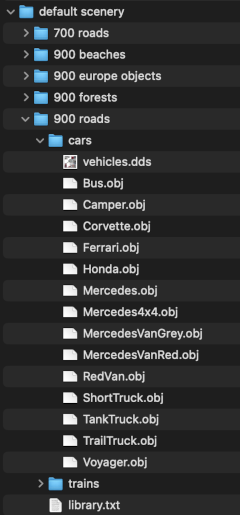
One benefit of the Library system comes into play when the placed asset is more 'categorical' and can be of several differing styles. For example, if you place an art asset in WED like a car, and you have say, 9 differing styles of car 3D models, then X-Plane can randomize those car styles wherever you have specified a car to be, so you have some variety without having to specify each car style explicity. You can just click the 3D Object tool in WED, select a car and start putting them all over your scenery. The library.txt entries for this situation would look like as shown below.
EXPORT lib/cars/car.obj         cars/Honda.obj
EXPORT lib/cars/car.obj         cars/MercedesVanRed.obj
EXPORT lib/cars/car.obj         cars/MercedesVanGrey.obj
EXPORT lib/cars/car.obj         cars/RedVan.obj
EXPORT lib/cars/car.obj         cars/Mercedes4x4.obj
EXPORT lib/cars/car.obj         cars/Voyager.obj
EXPORT lib/cars/car.obj         cars/Mercedes.obj
EXPORT lib/cars/car.obj         cars/Corvette.obj
EXPORT lib/cars/car.obj         cars/Ferrari.obj
EXPORT lib/cars/Ferrari.obj     cars/Ferrari.obj
Most of the virtual path names (left side) are the same in this example, but each line entry points to differing 3D objects. This technique cause X-Plane to randomize the art assets that have the same virtual path name. Note that the last line virtual path is mapped to the real 3D asset more explicitly. Whereas car is a category, Ferrari is much more specific and so only one library entry exists. By explicitly specifying the virtual path lib/cars/Ferrari.obj in WED, you know that you are going to get a Ferrari due to this library.txt mapping. If you simply specify lib/cars/car.obj however, then X-Plane will randomly select the art asset for you.
Another benefit of the Library System, and this is a big one, is that as Laminar improves their artwork, say they make NEW, high-rez 3D cars and ship that new artwork in an X-Plane update, and your custom scenery has specified cars all over the place, then you're scenery will get the new cars without you having to update your scenery in WED. As part of such an update, Laminar would ship a new library.txt file, which uses the same virtual path names as before (which WED uses), but the actual art asset path would be differing, pointing to the new 3D object assets! Pretty cool! This is exactly why the library system was designed, so that Laminar could improve and grow their 3D asset library over time without burdening you as a WED author with having to update your projects with every scenery update.
Virtual Paths in WED
Library Virtual Paths show up in WED in two locations/forms. We'll use the following library.txt file entries as an example to illustrate. We only focus on the left side virtual paths, the right side Real Paths are inconsequential for this example.
EXPORT lib/airport/aircraft/airlines/heavy_d.obj            /Path_to/Real_asset/relative_to/library.txt
EXPORT lib/airport/aircraft/airlines/heavy_d_ana.obj        /Path_to/Real_asset/relative_to/library.txt
EXPORT lib/airport/aircraft/airlines/heavy_d_dal.obj        /Path_to/Real_asset/relative_to/library.txt
EXPORT lib/airport/aircraft/airlines/heavy_d_jal.obj        /Path_to/Real_asset/relative_to/library.txt
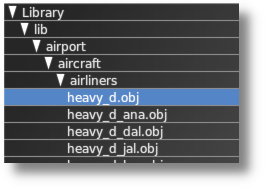
First, the virtual file paths are used by WED to dynamically build the Library Navigation Menu located in the Asset Selection Panel. The resulting navigation menu is shown at right, which you can readily see how it represents the file path hierarchy given in the virtual path entries above. If you are building your own scenery library, then you should take some time to think about the organizational structure. It is easier to design your art asset organization as a series of nested folders first, and then use that hierarchy to establish your virtual paths text strings for the library.txt file entries.
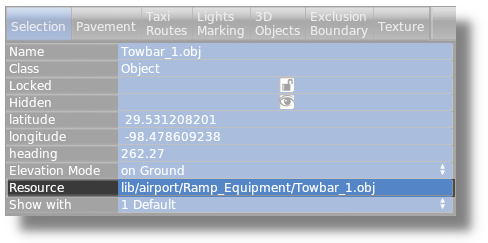
The second place Virtual File Paths may be seen in WED is in the Attributes Panel Resource property as shown at right. A Library virtual path is shown here under the following three conditions.
- The entity is part of a Library, as established through a library.txt entry.
- The entity type is indeed a "Resource" and has this attribute. (Not all WED entities do)
- The entity is selected.
We specifically mention point 1 above because the Resource Attribute may also be a Real file path rather than a virtual one. If the selected entity is not part of a library, i.e. no library.txt entry exists for it, then this property will be a real file path to the art asset where only the Custom Scenery Package that it is in can use it. Real file Paths are discussed in the Scenery Packages section of the manual
Default Libraries
Default Libraries are nothing more than Laminar's art assets that ship with X-plane, all of which exist somewhere within X-Plane's Resources directory. There are many library.txt files scattered throughout Laminar's various art asset folders, which makes the assets available in WED to any Scenery Package. These art assets are collectively known as the Laminar Library or Default Assets, and are the building blocks for creating Gateway Airports. Laminar actively develops and ships new art assets for its library regularly, giving you more and more variety over time to build your 3D scenery.
Custom Libraries
At its simplest, a custom library is simply a Custom Scenery folder with art assets in it and a library.txt file telling X-Plane which assets in that folder to make available for use in other scenery packages. While you can make any asset in your Custom Scenery a library item by providing a library.txt file in it, most of the time Custom Libraries are a collection of assets intended to be used in other Custom Scenery Packages. There are many 3rd party Custom Libraries available for download on various forums.
A common annoyance with 3rd party scenery libraries is that when a WED scenery developer uses them to make their Custom Scenery, then folks who download and install that Custom Scenery must also download the associated scenery library. The annoyance comes when the end user doesn't find out about the missing scenery library until they try to load the scenery in X-Plane and get an error message that some art assets are missing. If a WED scenery developer has used multiple 3rd party scenery libraries and neglects to inform the end user about which libraries are needed, then the end user gets to see this error message several times over, which can be frustrating as the end user then has to go find the scenery library, download and install it.
For this reason, Laminar is investing in growing its Default Library to provide more variety and consistency for Scenery Developers and end-users, in order to provide a more seamless and frustration free experience. Best practice for Custom Scenery Developers who use 3rd party scenery libraries is to inform the end user and provide download links to those libraries somewhere and alleviate the burden of making the end-user search for it.
Replacing Default Assets
Recall we said previously that the Library system can be used to replace default Laminar Art Assets. Some (bad) developers have achieved this by replacing/altering Laminar's actual art assets in X-Plane's Resources folder. This is NOT GOOD, and causes problems when updating X-Plane via the Installer.
As it happens, when X-Plane loads, it scans the Custom Scenery folder first, gathering any Library.txt file entries and building an index of Custom Scenery Virtual Paths. It then compares that index of entries to its own Default Scenery Virtual Paths and whenever duplicate Virtual Path names exist, then the Custom Scenery art asset gets priority and is loaded in lieu of the default Art Asset, effectively replacing the default asset(s) without disturbing X-Plane's Art Assets.
In some cases, you may not want to replace all of X-Plane's assets, but rather extend or add to Laminar's default asset options to increase the variety. Perhaps the Default Library only has 30 differing car styles and you have 5 3D car models of your own laying around and want to extend the library of car styles to 35 (Laminar 30 + your 5). In this case, you can do this by using the EXPORT_EXTEND directive rather than just the EXPORT directive alone.
To replace/extend Laminar default art assets, then you have to know what the default Virtual Name of an asset is first so you can duplicate it in your own library.txt file. The easiest way to discover this is to use WED and place the asset/entity in your scenery temporarily, and then note the virtual name in the Resources attribute. You can then copy/paste that Virtual Path name in your own library.txt entry, and finally point to your own art assets.
Non-Intuitive Assets
Most custom artwork that authors make into a Library consists of 3D objects, i.e. new buildings, vehicles, airport equipment, etc. For these, the Real Paths in the library.txt file would point to the actual 3D *.OBJ file itself, and the OBJ file would then specify the texture paths used by those 3D objects. X-Plane have other art assets; however, that have no convenient editing/exporting tool like blender2xplane, and whose implementation are not as intuitive as for 3D objects. Examples of these types would be Terrain Textures, Road Textures, Beaches, Taxi-line textures, Taxiway Textures, etc.
The most visible component of these asset types are of course the repeating image textures themselves, which you see in X-Plane; however, for these art assets to be displayed properly, a specification file for each type tells X-Plane how to draw them. These specification files ARE the art asset just like an OBJ, and just like the OBJ file, the specification file will define the textures and their file paths.
So if you do want to replace the default art assets for these less-intuitive implementations, then just know that you may have to familiarize yourself with the Specifications of each type, build the specification text file by hand, and that any Library.txt real paths for these will need to point to the specification file asset and not any image files.
If you simply wanted to change the textures for these assets, then the proper way to do that is to duplicate the relevant X-Plane specification files into a custom scenery package along with the textures it uses, and then modify the textures within the Custom Scenery folder, and NOT the Resources folder.
Summary
- Default libraries are Laminar art assets that are located throughout X-Plane's Resources folder.
- Custom libraries are located within X-Plane's Custom Scenery folder.
- library.txt files are not required. They simply expose your custom artwork for other scenery packages to use.
- Use a library.txt file when you want to SHARE your art assets across multiple scenery packages.
- Use a library.txt file when you want to REPLACE or EXTEND default X-Plane art assets with your own.
- If you make a library.txt file, it will live at the root level of your Scenery Package folder.
- Virtual Paths are visible in WED, and ultimately written to DSF files by WED on Scenery Export.
- Virtual Paths are used to create the Library Navigation Hierarchy in WEDs Asset Selection Panel
- library.txt Specification if you want to dig deeper.