Menu Item Reference
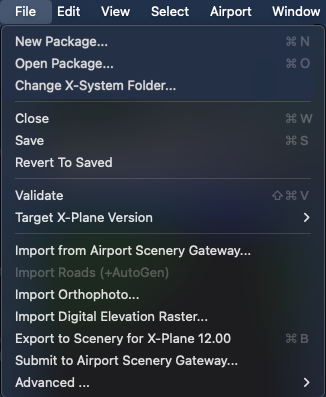
To see what the various menu items do, you can hover the mouse over each item to see a pop-up tooltip description. Some of the menu commands are standard operating system types and these are grayed out and have no pop-up tooltip.
| Menu item |
Description |
| Cut, Copy, Paste Text |
Only available for text editing. |
| Clear |
Deletes the selection |
| Duplicate |
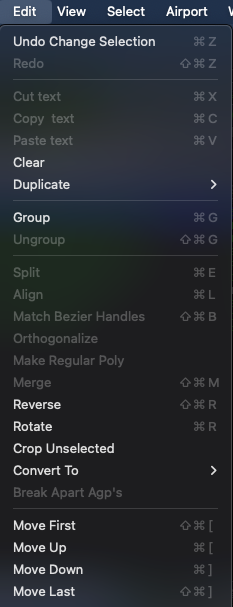
Duplicates the selection. Note that this works for hierarchy items, so you can duplicate whole groups of items in the hierarchy pane. Includes sub options to duplicate in place or to duplicate & move to the current airport. |
| Group, Ungroup |
These group the selection in the hierarchy pane, or break apart any group that is selected. |
| Split |
Introduces split points into any side of a polygon or line whose end-points are selected. |
| Align |
Align nodes into a straight line. |
| Match Bezier handles |
Automatically match a line or polygon to the shape of another one. |
| Othogonalize |
Straightens all sides of a polygon to make exact rectangles, etc. |
| Make Regular Poly |
Makes polygons into rotationally or axially symmetrical shapes. |
| Merge |
Merges two selected ATC network nodes into a single node, connecting the incoming routes of both. |
| Reverse |
Reverses the winding direction of a polygon. Note that if a polygon is right-side out and is reversed, it will be inside-out and stop rendering. |
| Rotate |
Rotates the order of sides on a polygon, which can change the position of facade sides and markings. |
| Crop Unselected |
Deletes every unselected element from the WED project. Parents and children of the selected elements in the hierarchy are kept. |
| Convert to |
Convert taxiways, draped polygons, airport line markings or lines into another type of entity of this list. |
| Move First, Move Up, Move Down, Move Last |
Change the ordering of the selected object in the hierarchy pane (e.g., selecting move first will cause the selected element to be highest in whatever group it is in). |
| Break Apart APG’s |
Break apart .agp groups into individual objects, if all .obj referenced are public. |
| Menu item |
Description |
| Zoom World |
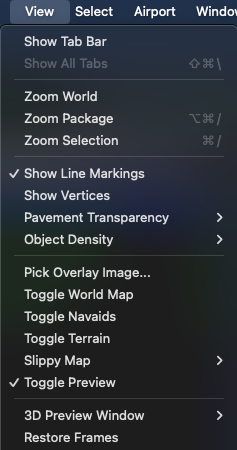
Zooms out to see the entire world. |
| Zoom Package |
Zooms to show only the contents of the currently open package. |
| Zoom Selection |
Zooms in to see the selected items filling the map pane. |
| Show Line Markings |
Shows a simple color preview of taxiway and line markings for apt.dat files. |
| Show Vertices |
Shows each vertex as a small dot. |
| Pavement Transparency |
Selects a level of transparency for all apt.dat pavement. |
| Object Density |
Shows a preview of the objects that a user would see at a given object density (set in the Rendering Options window in X-Plane). |
| Pick Overlay Image |
Creates a new overlay image from disk for reference purposes only. |
| Toggle World Map |
Turns the low-resolution background world map on or off. When checked, the background map is enabled. |
| Toggle Navaids |
Toggles background layer with airport icons and NAVAID locations. |
| Slippy Map |
Toggles OpenStreetMap or ESRI map information. |
| Toggle Preview |
Toggles semi-realistic preview of objects, AGPs, facades and most other art assets. When checked, these previews are enabled. |
| 3D Preview Window |
Toggle the Window, Show Map Area in Preview Window, or Center Map on Preview Camera |
| Restore Frames |
Resets the frames of the WED editing window to their default position. |
| Enter Full Screen |
Toggle full screen mode on/off |
| Menu item |
Description |
| Select All, Select None |
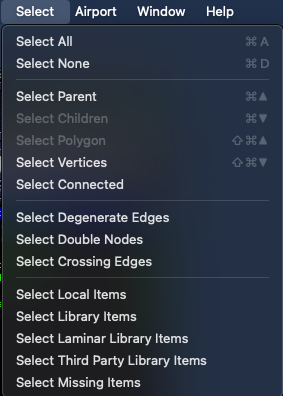
Select every object in the package or none of them. |
| Select Parent/Select Children |
Select the parent or children of the current selection in the hierarchy. |
| Select Polygon |
Given a selected vertex, selects the polygon that contains it. |
| Select Vertices |
Given a selected polygon, selects its vertices. |
| Select Connected |
Selects disjointed parts of an ATC network. |
| Select Degenerate Edges |
Selects ATC edges of zero length (i.e., edges between two points that are on top of one another). These are good edges to delete or the pack will not pass validation. |
| Select Double Nodes |
Selects any ATC nodes that overlap each other. These are good nodes to merge or the pack may not pass validation. |
| Select Crossing Edges |
Selects ATC edges that cross each other. These edges should be split or the pack may not pass validation. |
| Select Local Objects/Library Objects/Laminar Library Objects/Third Party Library Objects/Missing Objects |
Selects objects meeting the criteria |
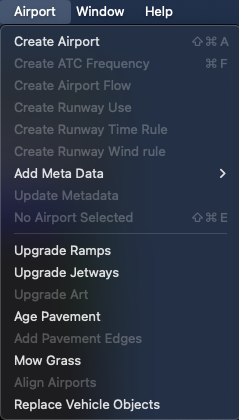
| Menu item |
Description |
| Create Airport |
Creates a new airport within the package. |
| Create ATC frequency |
Creates a new ATC frequency for the current airport. |
| Create Airport Flow |
Creates a new, empty airport flow for the current airport. |
| Create Runway Use |
Adds a runway use rule to the selected flow. |
| Create Runway Time Rule |
Adds a new time rule limitation to the current flow. |
| Create Runway Wind Rule |
Adds a new wind rule limitation to the current flow. |
| Add Metadata |
Add metadata fields such as City, Country, etc. |
| Update Metadata |
Downloads new, missing metadata (if available) for the airport. |
| Edit Airport [airport] |
Changes the current airport to the selected one. |
| Upgrade Ramps |
Auto-update pre X‑Plane 10.50 style ramp starts with useful defaults. |
| Upgrade Jetways |
Auto-update pre X‑Plane 12 facades or jetways to moving jetways. |
| Age Pavement |
Change pre-X-Plane 12 pavement textures to old & worn. |
| Add Pavement Edges |
Add cracks & worn look to pavement edges. |
| Mow Grass |
Creates lawn mowing tracks around objects. |
| Align Airports |
Mass-move airports to bring runways into CIFP compliance. |
| Replace Vehicle Objects |
Replace static ground service .objs with X‑Plane 11/12 ground service functions. |